
Last updated: August 9, 2026
Quick Answer: If you want to fix a slow WordPress site, the place to start is understanding what it is really costing you. A slow website is not just a technical inconvenience, it is a direct drain on revenue. Studies show that 53% of mobile users abandon a site that takes longer than three seconds to load [3], and every additional second of delay can reduce conversions by up to 7% [2]. The good news: most speed problems are fixable without a full-time IT team, and many solutions cost less than a single lost sale.
Key Takeaways
- A one-second delay in page load time can cut conversions by as much as 7%, making speed a direct business metric, not just a technical one [2]
- More than half of all web traffic now comes from mobile devices, where slow load times hurt hardest [1]
- The ideal homepage load time for most WordPress sites is under two seconds; anything above three seconds is losing you customers [6]
- Caching plugins, image compression, and a quality hosting plan are the three fastest wins for most slow WordPress sites
- A self-audit using free tools like Google PageSpeed Insights takes less than 15 minutes and costs nothing
- Hiring a specialist on Fiverr to fix slow WordPress site issues typically costs between $50 and $300 for a one-time performance audit and fix
- You do not need to understand code to solve most WordPress speed problems, you need the right checklist and the right person
Table of Contents
- The Real Business Cost of a Slow Site
- How to Check Your WordPress Site Speed
- What Causes WordPress Sites to Load Slowly
- How Much Does Website Speed Affect Sales and Conversions
- Step-by-Step Self-Audit Checklist
- How to Fix a Slow WordPress Site Without Technical Knowledge
- Best WordPress Speed Optimization Plugins
- WordPress Caching Explained for Beginners
- Should You Upgrade Hosting or Optimize Your Site First
- Common WordPress Speed Mistakes to Avoid
- WordPress vs Other Platforms for Speed
- When to Hire Someone vs DIY WordPress Optimization
- How to Pick the Right Specialist on Fiverr
- Frequently Asked Questions
- Conclusion
The Real Business Cost of a Slow Site
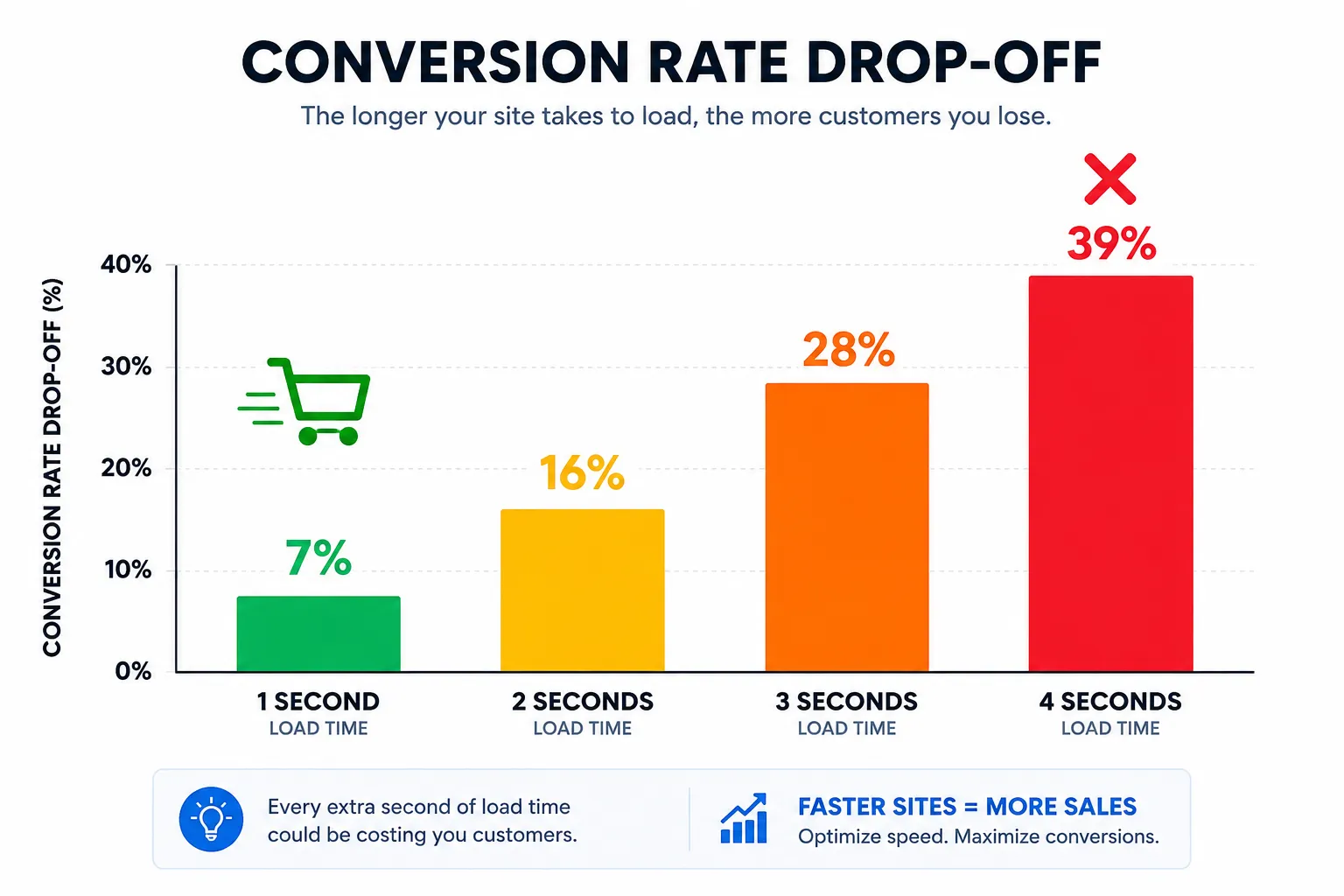
A slow website is not a minor inconvenience, it is a silent revenue leak. For every second your site takes to load beyond the two-second threshold, you are statistically losing a measurable percentage of potential buyers.
Here is what the data shows:
- 53% of mobile visitors leave a page that takes more than three seconds to load [3]
- Conversion rates drop by roughly 7% for every one-second delay in load time [2]
- Pages that load in one to two seconds see the highest conversion rates in ecommerce; sites loading in four or more seconds can see conversion rates plummet by 25% or more compared to faster peers [9]
- Google has confirmed that Core Web Vitals, a set of speed and user experience metrics, directly influence search rankings, meaning a slow site also ranks lower and gets less organic traffic [6]
“A 100-millisecond delay in load time can hurt conversion rates by up to 7%.”, Akamai, cited in multiple performance studies [2]
For a small business doing $10,000 a month in online revenue, a 7% conversion loss is $700 every single month, or $8,400 a year. That is not a rounding error. That is a marketing budget.
How to Check Your WordPress Site Speed
Before you fix anything, you need a baseline. Free tools give you a clear picture in minutes.
The fastest way to check: Go to PageSpeed Insights, paste your URL, and run the test. You will get a score from 0 to 100 for both mobile and desktop, plus a prioritized list of what is slowing your site down.
Other reliable free tools:
- GTmetrix (gtmetrix.com), shows waterfall load charts and grades each element
- WebPageTest (webpagetest.org), tests from real browsers in different locations
- Pingdom (tools.pingdom.com), simple speed grade with actionable recommendations
How long should a WordPress homepage take to load? The target is under two seconds for desktop and under three seconds for mobile. Anything above three seconds puts you in the danger zone where abandonment spikes sharply [6]. If your score is below 50 on PageSpeed Insights, treat it as urgent.
What Causes WordPress Sites to Load Slowly
WordPress sites slow down for a handful of predictable reasons. Most are fixable without touching a single line of code.
The most common culprits:
- Unoptimized images, Large image files are the single biggest cause of slow load times on most WordPress sites. A homepage hero image that is 4MB instead of 200KB adds seconds to every page load.
- Too many plugins, Each plugin adds code that must load on every page. Thirty plugins running simultaneously is a common problem for sites that have grown organically over years.
- Cheap or shared hosting, Budget hosting plans often put hundreds of sites on one server. When traffic spikes, your site slows to a crawl.
- No caching configured, Without caching, WordPress rebuilds every page from scratch for every visitor, which is slow and resource-intensive.
- Bloated themes, Page-builder themes like Divi or Avada are feature-rich but load dozens of scripts and stylesheets even on pages that don’t use those features.
- Database bloat, Over time, WordPress accumulates thousands of post revisions, spam comments, and transient data that slow down database queries.
- No content delivery network (CDN), Without a CDN, every visitor loads your site from a single server location. A visitor in Australia loading a site hosted in New York waits longer than necessary.
How Much Does Website Speed Affect Sales and Conversions
Website speed has a direct, measurable impact on sales. This is not theoretical, it is one of the most well-documented relationships in digital commerce.
Key benchmarks worth knowing:
- Sites loading in one second convert at roughly three times the rate of sites loading in five seconds [10]
- 40% of users will abandon a website that takes more than three seconds to load [7]
- A one-second improvement in load time has been shown to increase mobile conversions by up to 27% in documented case studies [9]
- Google’s own data shows that as page load time goes from one second to ten seconds, the probability of a mobile visitor bouncing increases by 123% [4]
For ecommerce sites, the math is stark. If your site converts at 2% and you fix your speed to gain a 20% relative improvement, you are now converting at 2.4%. On 10,000 monthly visitors with a $50 average order, that is an extra $20,000 in annual revenue from a one-time fix.
Step-by-Step Self-Audit Checklist
This checklist takes 15 to 30 minutes and requires no technical background. Work through it in order.
Step 1: Run a PageSpeed test
Go to pagespeed.web.dev, enter your homepage URL, and note your mobile and desktop scores. Screenshot the results for reference.
Step 2: Check your mobile experience
Open your site on your phone using a real mobile connection (turn off Wi-Fi). Time how long it takes to see the first image and interact with the page. If it feels slow to you, it feels slow to customers.
Step 3: Walk through your checkout flow
If you sell anything online, add a product to your cart and go all the way to the payment page. Note any steps that feel sluggish. Checkout abandonment is often caused by speed issues on payment pages specifically.
Step 4: Count your active plugins
In your WordPress dashboard, go to Plugins > Installed Plugins. Count how many are active. More than 20 active plugins is a yellow flag; more than 30 is a red flag. Deactivate any you are not actively using.
Step 5: Check your image sizes
Right-click any large image on your site and open it in a new tab. Look at the URL and file size in the browser tab title or use a browser extension like “Web Developer” to inspect image dimensions. Any image above 500KB on a standard page is a problem.
Step 6: Check for database bloat
Install the free WP-Optimize plugin, run a scan, and look at how many post revisions and transient entries exist. Thousands of revisions are common on older sites and slow down every page load.

How to Fix a Slow WordPress Site Without Technical Knowledge
Most WordPress speed problems have non-technical solutions. You do not need to edit PHP files or touch a server configuration to fix slow WordPress site issues in most cases.
The four fastest non-technical fixes:
- Install a caching plugin. WP Super Cache (free) or WP Rocket (paid, around $59/year) will immediately reduce load times by serving pre-built pages instead of rebuilding them on every visit. This single step can cut load times by 30 to 50% on most sites.
- Compress your images. Install the free Smush or ShortPixel plugin. Run a bulk optimization on your media library. This is often the single biggest speed gain available on image-heavy sites.
- Remove unused plugins and themes. Delete (not just deactivate) any plugin or theme you are not using. Inactive plugins still represent a security risk and can slow admin loading.
- Enable a CDN. Cloudflare’s free plan is the easiest starting point. It routes your traffic through global servers, reducing load times for visitors who are geographically far from your hosting server.
Best WordPress Speed Optimization Plugins
The right plugin depends on your budget and comfort level. Here is a practical breakdown:
| Plugin | Best For | Cost |
|---|---|---|
| WP Rocket | Best all-in-one paid option | ~$59/year |
| W3 Total Cache | Free, highly configurable | Free |
| WP Super Cache | Simple free caching | Free |
| Smush | Image compression | Free / Pro |
| ShortPixel | Aggressive image optimization | Free / Pay-per-use |
| Cloudflare | CDN + basic security | Free / Paid |
| WP-Optimize | Database cleanup | Free / Pro |
Choose WP Rocket if you want a set-and-forget solution and do not want to configure settings manually. It handles caching, lazy loading, minification, and CDN integration in one interface.
Choose W3 Total Cache if you are comfortable spending 30 minutes on setup and want granular control without paying for a premium plugin.
WordPress Caching Explained for Beginners
Caching is the single most impactful speed fix for most WordPress sites, and it is easier to understand than it sounds.
Without caching, every time a visitor loads your homepage, WordPress runs a series of database queries, assembles the page from templates and content, and sends the finished HTML to the browser. This takes time, often one to three seconds on a standard shared hosting plan.
With caching enabled, WordPress builds the page once, saves a static copy, and serves that copy to every subsequent visitor. Instead of running 40 database queries, it serves a pre-built file. Load times can drop from two seconds to under half a second.
What caching plugins actually do:
- Store static HTML copies of your pages
- Minify CSS and JavaScript files (strip out whitespace and comments to reduce file size)
- Enable browser caching (tell visitors’ browsers to store certain files locally so they do not re-download them on every visit)
- Defer non-critical scripts so the visible page loads first
For beginners, WP Super Cache (free) or WP Rocket (paid) are the two easiest starting points. Both have one-click setup wizards.
Should You Upgrade Hosting or Optimize Your Site First
Optimize first, then upgrade hosting if needed. Upgrading hosting without optimizing is like buying a faster car without fixing the flat tyre, you will still underperform.
Run through the optimization checklist above. If your PageSpeed score is still below 60 after adding caching, compressing images, and removing unused plugins, then hosting quality is likely a bottleneck.
Signs your hosting is the problem:
- Your server response time (Time to First Byte, or TTFB) is above 600 milliseconds on GTmetrix
- Your site slows dramatically during business hours (shared server congestion)
- Your hosting plan costs less than $5/month (most sub-$5 plans are oversold shared servers)
Hosting upgrade options worth considering:
- SiteGround or Kinsta for managed WordPress hosting ($30 to $100/month)
- Cloudways for cloud-based hosting with more control ($15 to $80/month)
- WP Engine for high-traffic or ecommerce sites ($25 to $200/month)
Moving from cheap shared hosting to a managed WordPress host typically cuts TTFB by 50 to 70% on its own [8].
Common WordPress Speed Mistakes to Avoid
Even well-intentioned site owners make these mistakes repeatedly.
- Installing multiple caching plugins at once. They conflict with each other and can break your site. Pick one and stick with it.
- Using a page builder for every page. Elementor and Divi are convenient but load heavy scripts on every page, even simple ones. Use them selectively.
- Ignoring mobile scores. Many owners check only desktop PageSpeed scores. Mobile is where most traffic comes from and where speed problems hit hardest [1].
- Skipping image compression on new uploads. Even with a compression plugin installed, new images added without the plugin active will be unoptimized. Make compression a habit for every upload.
- Not testing after changes. Every plugin you add or theme change you make can affect speed. Re-run PageSpeed Insights after any significant change.
- Keeping every post revision. WordPress saves a new revision every time you update a post. A post edited 50 times has 50 database rows. Set a revision limit (5 is usually enough) using a plugin or a wp-config.php setting.
WordPress vs Other Platforms for Speed
WordPress is not inherently slow, but it requires more active management than some alternatives. Out of the box, a default WordPress install on quality hosting is reasonably fast. The problem is that most real-world WordPress sites accumulate plugins, heavy themes, and unoptimized media over time.
How WordPress compares:
- Shopify, Faster out of the box for ecommerce because it is a hosted, managed platform. Less flexibility but less maintenance.
- Squarespace, Simpler and generally faster for basic sites, but limited for complex functionality.
- Webflow, Produces clean, fast code and is gaining traction with designers, but has a steeper learning curve.
- WordPress (optimized), When properly configured with caching, a CDN, and quality hosting, a WordPress site can match or beat any platform on speed. The key word is “optimized.”
For small businesses already on WordPress, switching platforms is rarely the right answer. The migration cost and disruption almost always outweigh the speed benefit, especially when most WordPress speed problems are solvable in a few hours of focused work.
When to Hire Someone vs DIY WordPress Optimization
Do it yourself if your PageSpeed score is above 50, you have fewer than 25 active plugins, and you are comfortable following step-by-step instructions. The self-audit checklist above covers 80% of what a paid specialist would do first.
Hire a specialist if:
- Your PageSpeed score is below 40 and basic fixes have not moved the needle
- Your site breaks when you try to make changes
- You are running an ecommerce store where downtime or errors cost real money
- You have already spent more than three hours on the problem without resolution
- You need the fix done correctly and quickly without learning a new skill set
The option for on-demand help: Hundreds of WordPress speed specialists who offer one-time performance audits and optimization packages. This is a practical alternative to hiring a full-time developer or paying an agency retainer. A typical WordPress speed optimization servicve runs between $50 and $300 depending on scope, with most small business fixes falling in the $75 to $150 range.
The Gig Resource covers this freelance marketplace approach in depth, the core idea is that on-demand specialists give small business owners access to expert-level help without long-term contracts or overhead.
How to Pick the Right Specialist
Not all sellers are equal. A few criteria separate reliable specialists from risky ones.
What to look for:
- Minimum 50 reviews with a 4.8+ rating, Volume of reviews matters more than a handful of five-star ratings
- Specific deliverables listed, Good sellers specify exactly what they will do: caching setup, image compression, database cleanup, CDN configuration. Vague listings (“I will speed up your WordPress site”) are a red flag.
- Before/after PageSpeed scores in their portfolio, Sellers who show real score improvements are demonstrating actual results, not just promises.
- Clear turnaround time, Most quality speed optimization gigs are completed in one to three business days.
- A staging or backup policy, Any competent developer will either work on a staging copy of your site or take a full backup before making changes. Ask this directly in the chat before ordering.
Questions to ask before hiring:
- Will you work on a staging site or take a backup first?
- What specific changes will you make?
- What PageSpeed score improvement can I realistically expect?
- Do you offer any guarantee or revision if the score does not improve?
Budget $75 to $150 for a solid one-time fix on a standard small business site. For ecommerce sites with complex setups, budget $150 to $300.
Frequently Asked Questions
How long should my WordPress homepage take to load?
Under two seconds is the target for desktop; under three seconds for mobile. Anything above three seconds puts you in the range where more than half of mobile visitors will leave before the page finishes loading [3].
Does image optimization really make a difference on WordPress?
Yes, significantly. Images are the largest files on most web pages and the most common cause of slow load times. Compressing images with a plugin like Smush or ShortPixel can reduce page weight by 40 to 70% on image-heavy sites, which translates directly to faster load times.
What is the difference between caching plugins like WP Rocket and W3 Total Cache?
Both serve pre-built static pages to reduce server load, but WP Rocket is a premium plugin with a guided setup and automatic configuration of advanced features like lazy loading and CDN integration. W3 Total Cache is free but requires more manual configuration. WP Rocket is the better choice for non-technical users; W3 Total Cache suits those comfortable with more hands-on setup.
Can a slow site hurt my Google ranking?
Yes. Google uses Core Web Vitals, which measure loading speed, interactivity, and visual stability, as ranking signals. A slow site can rank lower in search results, reducing organic traffic on top of the conversion losses from speed itself [6].
How much does it cost to fix a slow WordPress site?
DIY fixes using free plugins cost nothing but your time. Hiring a specialist on Fiverr typically costs $50 to $300 for a one-time optimization. Upgrading to managed WordPress hosting adds $30 to $100 per month. Most small business sites can be meaningfully improved for under $200 total.
Should I switch from WordPress to Shopify or Squarespace for better speed?
Rarely. Platform migration is expensive, disruptive, and rarely necessary. A properly optimized WordPress site can match the speed of any hosted platform. Fix the optimization issues first; consider migration only if you have exhausted all optimization options and still cannot meet performance targets.
Conclusion
A slow WordPress site is not a technology problem, it is a revenue problem. The data is clear: visitors leave, conversions drop, and search rankings suffer when pages take too long to load. But the fix is within reach for any small business owner willing to spend an afternoon on a structured audit.
For the broader picture on keeping all of your business technology running smoothly, see our hub guide: small business tech support for your company.
Actionable next steps to take today:
- Run your site through Google PageSpeed Insights right now and screenshot the results
- Install a caching plugin (WP Super Cache for free, WP Rocket if you want a premium option)
- Run a bulk image compression through Smush or ShortPixel
- Deactivate and delete any plugins you are not actively using
- If your score is still below 50 after these steps, post a job for a WordPress speed specialist, budget $75 to $150 and look for sellers with 50+ reviews and before/after portfolio examples
The goal is not perfection. A site that loads in under two seconds and scores above 70 on PageSpeed Insights is already ahead of most competitors. Start there, measure the results, and iterate.
Speed Revenue Impact Calculator
See what a slow website is costing you every month.
Current monthly revenue: —
Projected monthly revenue: —
Monthly gain: —
Annual gain: —
References
[1] Website Statistics – https://www.forbes.com/advisor/business/software/website-statistics/
[2] Website Speed Statistics – https://www.designrush.com/agency/web-development-companies/trends/website-speed-statistics
[3] Website Speed Page Load Time Statistics – https://www.wearetenet.com/blog/website-speed-page-load-time-statistics
[4] Page Speed Statistics – https://christopholivierconsulting.com/page-speed-statistics/
[6] Website Speed Crisis 2025 – https://siteqwality.com/blog/website-speed-crisis-2025/
[7] Site Speed Statistics – https://colorlib.com/wp/site-speed-statistics/
[8] Website Load Time Statistics In 2025 – https://www.kanukadigital.com/2025/09/website-load-time-statistics-in-2025/
[9] The Critical Importance Of Site Speed In 2025 Boosting Conversions Seo And User Loyalty – https://www.rickyspears.com/ecommerce/the-critical-importance-of-site-speed-in-2025-boosting-conversions-seo-and-user-loyalty/
[10] Tiempo Carga Conversion – https://ighenatt.es/en/resources/velocidad-web/tiempo-carga-conversion/