
A logo that looks sharp on a business card but turns into a blurry mess on a website banner is not a finished logo, it is a half-finished one. This is one of the most common and costly oversights in small-business branding: a designer delivers files, the client says thank you, and nobody checks whether those files actually work across every surface the brand will appear on. Understanding logo design file formats is the difference between a logo that works everywhere and one that quietly damages your brand every time it is used in the wrong place.
This guide explains every major format in plain English, tells you exactly which files to request, and shows you how to check what you have received.
Key Takeaways
- Vector formats (SVG, EPS, AI, PDF) scale to any size without losing quality and are essential for print and signage.
- Raster formats (PNG, JPG) are fixed-pixel files suited to web, social media, and email, not large-format print.
- Every logo project should deliver at least six files covering both vector and raster needs across print and digital.
- You need separate colour versions: full colour, black, and white, in both RGB (screen) and CMYK (print) where applicable.
- Asking the right questions before a project begins prevents costly re-work after delivery.
Table of Contents
- Why logo file formats matter after the design is finished
- SVG files explained: the best choice for websites and scalable digital use
- EPS files explained: the professional source format for print and editing
- PNG files explained: transparent backgrounds and everyday digital use
- JPEG files explained: when they are useful and when they are not
- PDF, AI and other files a designer may provide
- RGB, CMYK, vector and raster explained in plain English
- The complete logo file package a small business should request
- How to check whether your logo files are usable
- What to ask a logo designer before the project begins
- FAQ
- References
Why Logo File Formats Matter After the Design Is Finished
Most small-business owners focus on how a logo looks. The format it is saved in feels like a technical afterthought, until the moment a printer refuses a file, a website header looks blurry on a retina screen, or a sign shop asks for “an EPS” and nobody knows what that means.
Logo design file formats determine how a logo performs in every real-world context. The same artwork saved in the wrong format can appear crisp in one place and degraded in another. A JPG logo embedded in a website header may look fine on a standard monitor but appear soft on a high-resolution display. The same logo sent to a commercial printer at low resolution can produce a result that looks nothing like the original design.
The core issue is that different surfaces, websites, social profiles, business cards, packaging, banners, merchandise, have different technical requirements. No single file format meets all of them. A professional logo delivery should include multiple formats so the brand is protected regardless of where it appears.
This is not a design problem. It is a deliverables problem, and it is entirely preventable with the right information.
SVG Files Explained: The Best Choice for Websites and Scalable Digital Use
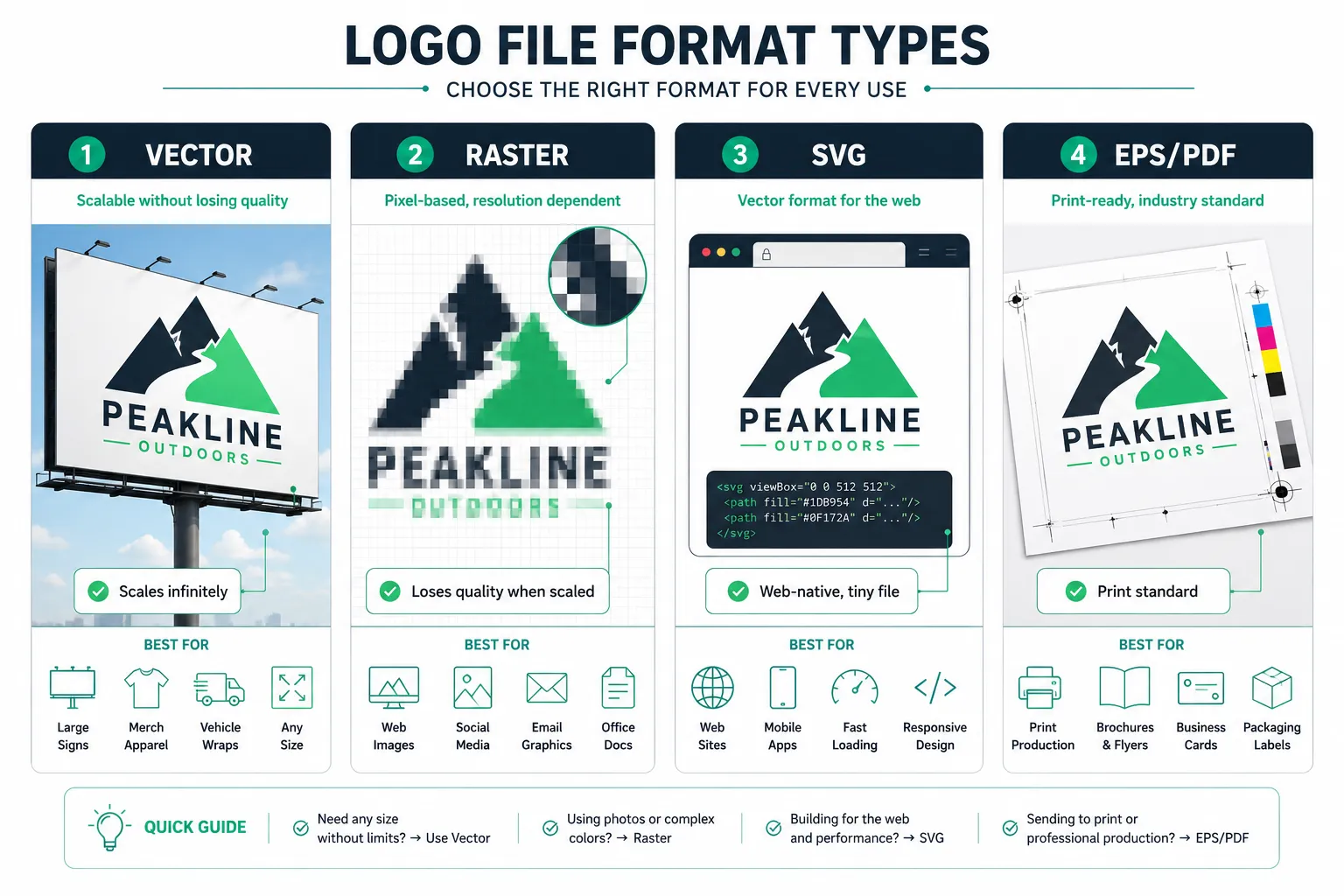
SVG stands for Scalable Vector Graphics. It is a file format built on mathematical descriptions of shapes, lines, and curves rather than pixels. Because the image is defined by coordinates and paths rather than a fixed grid of dots, it can be displayed at any size, from a small favicon to a full-screen hero image, without any loss of quality.
In 2026, SVG has become the preferred format for logo use on websites and digital products [1][5]. Browsers render SVG natively, meaning no conversion is needed. SVG files are also typically very small in file size, which benefits page load speed. One industry analysis describes SVG as “the web master” for logos, noting its perfect rendering on high-DPI screens and its performance benefits [1].
When to use SVG:
- Website headers and navigation bars
- Mobile app icons (where the platform supports it)
- Email signatures (when the client supports SVG)
- Any digital context where the logo must appear at multiple sizes
When SVG is not the right choice:
- Social media profile images (most platforms convert uploads to raster formats automatically)
- Email campaigns sent through bulk email platforms (many email clients do not render SVG reliably)
SVG files can be opened and edited in design tools such as Adobe Illustrator, Inkscape, and Figma. They can also be embedded directly into website code, which gives developers additional flexibility for animation or colour changes.
EPS Files Explained: The Professional Source Format for Print and Editing
EPS stands for Encapsulated PostScript. For decades it was the standard format for professional logo delivery, particularly for print work. It stores vector artwork in a way that is compatible with professional design and print software, and it can be scaled to any size without quality loss [8].
EPS remains widely used in print workflows. Sign shops, commercial printers, and merchandise suppliers frequently request EPS files because their equipment and software have been built around the format [10]. If a business is ordering branded uniforms, vehicle wraps, or large-format banners, an EPS file is often what the vendor will ask for.
However, EPS is increasingly considered a legacy format. One logo-delivery guide notes that EPS “used to be the standard vector logo format” but has been largely replaced by PDF in modern workflows [4]. Another comparison describes EPS as a format that is still necessary for compatibility with older systems but recommends defaulting to PDF for new print projects because of better colour management and universal viewing [6].
Practical guidance: Request an EPS file as part of your logo package, but do not rely on it as your only print format. Pair it with a vector PDF (explained below) so you have a fallback that any modern system can open.
PNG Files Explained: Transparent Backgrounds and Everyday Digital Use
PNG (Portable Network Graphics) is a raster format, meaning it stores the image as a fixed grid of pixels. Unlike vector formats, a PNG cannot be scaled up without losing quality. However, PNG has one feature that makes it indispensable for everyday logo use: it supports transparent backgrounds.
A PNG logo with a transparent background can be placed on any coloured surface, a dark website header, a coloured social media banner, a slide deck, without a white box appearing around it. This makes PNG the most practical format for day-to-day digital use [4][8].
When to use PNG:
- Social media profile images and cover photos
- Website use where SVG is not supported
- Presentations and slide decks
- Email signatures
- Any digital context where the logo sits on a coloured or patterned background
Resolution matters for PNG. A PNG logo intended for web use should be exported at 72-96 DPI. A PNG intended for print use should be at least 300 DPI [2]. Request both versions from your designer, a web-optimised PNG and a high-resolution PNG, so you are covered for both contexts.
PNG files are not ideal for large-format printing. At those sizes, the fixed pixel count becomes a limitation and the image will appear soft or pixelated. For print at scale, always use a vector format.
JPEG Files Explained: When They Are Useful and When They Are Not
JPEG (also written JPG) is a compressed raster format. It reduces file size by discarding some image data, a process called lossy compression. This makes JPG files small and easy to share, but it also means quality degrades slightly with each save, and the format does not support transparent backgrounds.
For logos, JPG has a narrow but legitimate use case [4][8]. It is suitable for:
- Email attachments where file size is a concern
- Social media posts where the platform compresses images anyway
- PowerPoint presentations shared externally
- Any context where a white background is acceptable and file size matters
JPG is not suitable for:
- Any use where a transparent background is needed
- Large-format print (the compression artefacts become visible)
- Situations where the logo will be placed on a coloured background
One 2026 guide describes JPG as “the best logo file format for web, social, PowerPoint” in the specific context where a white background is acceptable and file size is a priority [4]. That is a fair description, but it should never be the only digital format in a logo package.
PDF, AI and Other Files a Designer May Provide
PDF (Portable Document Format) is a versatile format that can store either vector or raster content. When a logo is saved as a vector PDF, it behaves like EPS or SVG, fully scalable, print-ready, and editable in professional design software. Vector PDF has become the preferred print handoff format in many modern workflows because it offers strong colour management and can be opened on virtually any device without specialist software [4][6].
A PDF logo file is useful for:
- Sending to printers, sign shops, and merchandise suppliers
- Sharing with marketing agencies or other designers
- Archiving the logo in a universally readable format
AI (Adobe Illustrator) is the native file format for Adobe Illustrator, the industry-standard vector design tool. An AI file is the master source file, it contains all the layers, editable text, and design elements that make future editing possible [1][4]. If a designer ever needs to make changes to the logo (adjusting a font, altering a colour, adding a tagline), the AI file is what makes that possible cleanly.
Not every business owner will be able to open an AI file, and that is fine. Its purpose is not day-to-day use, it is long-term preservation of the editable artwork. Always request the AI source file and store it securely, even if you cannot open it.
Other formats such as TIFF, WebP, and GIF are raster formats with specific use cases in photography, web performance, and animation respectively. They are not standard logo deliverables and do not need to be part of a typical logo package [5].
RGB, CMYK, Vector and Raster Explained in Plain English
These four terms appear constantly in conversations about logo design file formats. Here is what they mean in practice.
Vector vs Raster
| Property | Vector (SVG, EPS, AI, PDF) | Raster (PNG, JPG) |
|---|---|---|
| How it stores the image | Mathematical paths and shapes | Fixed grid of pixels |
| Scales without quality loss | Yes | No |
| Best for | Print, signage, editing | Web, social, email |
| File size | Usually small | Depends on resolution |
| Transparent background | Depends on format | PNG yes, JPG no |
Vector formats store shapes as mathematical descriptions that re-render cleanly at any size [5][5]. Raster formats store a fixed number of pixels; scaling up reduces quality and causes blurring [5][5].
RGB vs CMYK
- RGB (Red, Green, Blue) is the colour model used by screens. Files intended for websites, social media, and digital use should be in RGB.
- CMYK (Cyan, Magenta, Yellow, Key/Black) is the colour model used by commercial printers. Files sent to a print shop should be in CMYK.
A logo that looks vibrant on screen in RGB may appear duller when printed in CMYK if the colours have not been properly converted. This is why professional logo packages include separate colour-mode versions of each file.
For a deeper look at how consistent branding across formats and surfaces affects your overall brand identity, see the TGR guide on brand identity for small business.
The Complete Logo File Package a Small Business Should Request
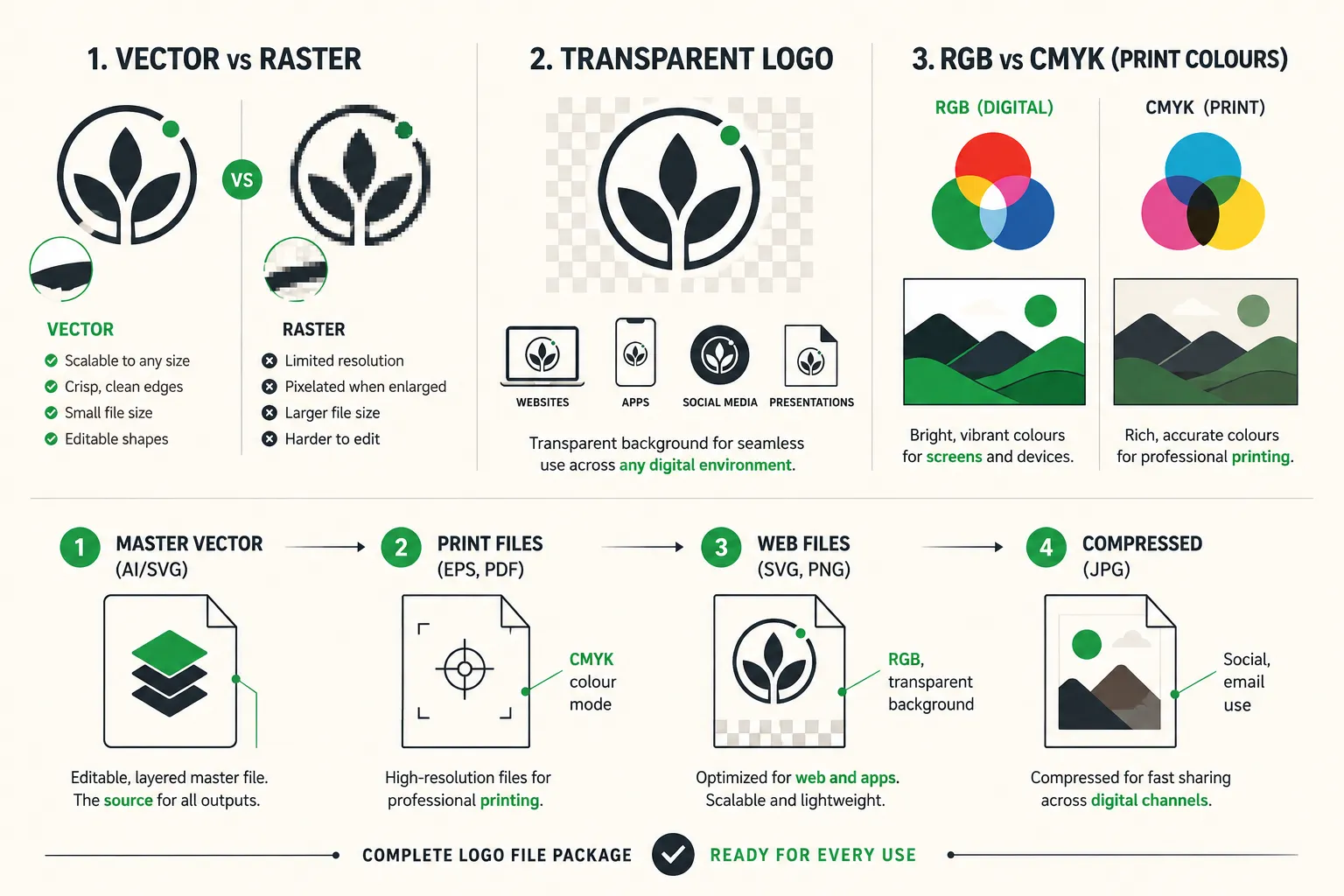
Industry guidance in 2026 is consistent: a complete logo delivery should include at least six files covering both vector and raster needs [1][6][7]. The table below shows what to request and why.
| File | Format type | Colour mode | Primary use |
|---|---|---|---|
| AI source file | Vector | RGB or CMYK | Editing and archiving |
| EPS | Vector | CMYK | Print, merchandise, sign shops |
| Vector PDF | Vector | CMYK | Print handoff, universal sharing |
| SVG | Vector | RGB | Websites, digital products |
| PNG (transparent) | Raster | RGB | Social media, presentations, email |
| JPG | Raster | RGB | Email attachments, social posts |
Colour versions to request for each format:
One studio’s delivery checklist recommends that every logo package include vector files in full colour, black, and white, plus JPG and PNG variants for each colour version [7]. In practice, that means requesting:
- Full colour (your brand colours)
- Black version (for use on light backgrounds where colour is not available)
- White version (for use on dark or coloured backgrounds)
- Reversed/knockout version if your logo uses a complex background
A practical checklist:
- AI source file (full colour, layered)
- EPS, full colour, black, white (CMYK)
- Vector PDF, full colour, black, white (CMYK)
- SVG, full colour, black, white (RGB)
- PNG with transparent background, full colour, black, white (RGB, high resolution)
- JPG, full colour, black (RGB, white background)
This may feel like a large number of files. It is. A thorough logo delivery from a professional designer should produce 12 to 18 files when all colour versions and formats are accounted for [7][9]. If a designer delivers only two or three files, that is a signal to ask for the rest before the project closes.
If you are working with a graphic designer and want to understand how to structure that engagement effectively, the TGR guide on how to outsource graphic design covers the workflow in detail.
How to Check Whether Your Logo Files Are Usable
Receiving a folder of logo files does not guarantee they are correct. Here is a practical way to audit what you have.
Step 1, Check the file types. Open the folder and look at the file extensions. You should see .ai, .eps, .pdf, .svg, .png, and .jpg. If you only see .jpg or .png files, you are missing your vector masters.
Step 2, Test the PNG transparency. Open a PNG file in a browser or image viewer. Place it against a coloured background (change the desktop wallpaper to a dark colour, for example). If a white box appears around the logo, the PNG was not exported with a transparent background.
Step 3, Test SVG scalability. Open an SVG file in a browser. Zoom in to 400% or more. The logo should remain perfectly sharp. If it becomes pixelated, the file may have been saved incorrectly.
Step 4, Attempt to open the PDF. A vector PDF should open cleanly in Adobe Acrobat Reader or any modern browser. Zoom in to 500%. If the logo remains sharp, it is a vector PDF. If it becomes blurry, it may have been saved as a raster PDF, which is not suitable for print.
Step 5, Check colour versions. Confirm you have a white version of the logo on a dark background and a black version on a light background. If either is missing, request it.
Step 6, Confirm the AI file is included. The AI source file is your long-term insurance policy. If it is missing, request it before the designer closes the project. Once a project is closed, retrieving source files can be difficult or costly.
What to Ask a Logo Designer Before the Project Begins
The best time to clarify logo design file formats is before work starts, not after. These questions protect both parties and set clear expectations.
Questions to ask before signing off:
- What file formats will be included in the final delivery?
- Will the delivery include vector source files (AI and/or EPS)?
- Will I receive separate colour versions, full colour, black, and white?
- Will files be provided in both RGB (for screen) and CMYK (for print)?
- Will the PNG files include transparent backgrounds?
- Is the SVG file suitable for direct use on a website?
- Will I own the source files outright, or are there licensing restrictions?
These questions are not technical demands, they are standard professional expectations. A designer who has delivered complete logo packages before will answer them without hesitation.
For guidance on finding and briefing the right designer for your budget, the TGR article on how to hire a freelance graphic designer for a startup covers the process in practical terms.
If your brand is growing and you are thinking about how logo formats fit into a broader marketing and content strategy, the TGR guide on small business marketing ROI provides useful context on where brand assets fit into measurable business outcomes.

FAQ
What is the most important logo file format for a small business? SVG is the most important format for digital use because it scales perfectly on any screen size. For print, a vector PDF or EPS is essential. PNG with a transparent background covers most everyday digital needs. No single format covers everything, which is why a complete package includes all of them.
Can I use a JPG logo for everything? No. JPG does not support transparent backgrounds, degrades with each save, and is unsuitable for large-format print. It is useful for email attachments and social media posts where a white background is acceptable, but it should not be the only format in your logo package.
What is the difference between a vector and a raster logo file? A vector file stores the logo as mathematical paths and shapes, so it can be scaled to any size without losing quality. A raster file stores the logo as a fixed grid of pixels, so scaling it up causes blurring. Logos should always be created and archived as vector files, with raster exports (PNG, JPG) produced for specific digital uses.
Why do I need so many different logo files? Different surfaces have different technical requirements. A website needs SVG or PNG. A commercial printer needs EPS or vector PDF in CMYK. A social media profile needs PNG. No single file works everywhere, so a complete package ensures the brand looks correct regardless of where it is used.
My designer only sent me a PNG. What should I do? Contact the designer and request the vector source files, specifically AI, EPS, and vector PDF. If the logo was created in a vector tool (which it should have been), these files exist and the designer can provide them. If the designer cannot provide vector files, the logo may have been created in a raster tool, which is a significant problem for future print and scaling use.
What is the difference between RGB and CMYK, and why does it matter for logos? RGB is the colour model for screens; CMYK is the colour model for commercial printing. A logo file in RGB may look different when converted to CMYK for print if the colours are not carefully managed. Requesting separate CMYK versions of your print files ensures colours are accurate when the logo is reproduced on physical materials.
Conclusion
Logo design file formats are not a technical detail to leave to chance. They determine whether a brand looks professional or amateurish across every surface it appears on, from a website header to a trade show banner to a branded coffee cup.
The practical steps are straightforward. Request a complete package that includes AI, EPS, vector PDF, SVG, PNG (with transparent background), and JPG. Ask for full colour, black, and white versions of each. Confirm that print files are in CMYK and digital files are in RGB. Test the files before the designer closes the project. Store the AI source file securely.
These are not unreasonable demands. They are standard professional deliverables that any experienced designer should provide without hesitation.
If a logo project is still in progress, use the checklist in this article to brief the designer clearly. If a logo has already been delivered and files are missing, contact the designer now, before the source files are archived or lost. The cost of re-requesting files today is far lower than the cost of rebuilding a logo from scratch because the originals are unavailable.
For businesses thinking beyond the logo itself, consistent brand identity across all materials is what turns a good logo into a recognisable brand. The TGR guide on brand identity for small business is a useful next step once the file formats are sorted.
References
[1] Logo File Formats Guide – https://www.akrivi.io/learn/logo-file-formats-guide
[2] How To Prepare Logo For Printing – https://www.little6llc.com/2026/01/02/how-to-prepare-logo-for-printing/
[3] Best File Formats For High Resolution Logo Printing – https://logodiffusion.com/blog/best-file-formats-for-high-resolution-logo-printing
[4] Logo Files – https://www.ebaqdesign.com/blog/logo-files
[5] Logo File Formats Explained – https://brainy.ink/paper/logo-file-formats-explained
[6] Logo File Formats – https://designpowers.com/blog/logo-file-formats
[7] Logos What File Formats Should You Get And Why – https://b-double-e.co.uk/logos-what-file-formats-should-you-get-and-why/
[8] File Formats For Logo – https://www.logodesign.net/blog/file-formats-for-logo/
[9] Logo Design Guide – https://nvisiondesign.co.uk/logo-design-guide/
[10] Logo File Formats Explained – https://madebyevoke.com/blog/logo-file-formats-explained